Setting up Jest for TypeScript testing in React and NodeJS can streamline your development workflow and ensure high-quality code. This guide provides an opinionated, step-by-step process for configuring Jest with TypeScript support, whether you’re working on new or existing projects.
1. Install Jest and Its Friends (Dependencies)
Start by installing the necessary Jest packages along with TypeScript support:
# Using Yarn
yarn add --dev jest ts-jest @types/jest

# Or using npm
npm install --save-dev jest ts-jest @types/jestts-jest: A TypeScript preprocessor that lets Jest handle.tsand.tsx(TypeScript files).@types/jest: Provides type definitions for Jest in TypeScript.
2. Configure Jest with the Preprocessor
Generate a basic Jest configuration using ts-jest:
npx ts-jest config:initThis command generates a jest.config.js file with the following contents:
module.exports = {
  preset: 'ts-jest',
  testEnvironment: 'node',
};
3. Customize Your Jest Configuration (Optional)
For advanced setups, you can extend your configuration to include code coverage and improved testing workflows:
module.exports = {
  roots: ['<rootDir>/src'],
  preset: 'ts-jest',
  testEnvironment: 'node',
  coverageDirectory: 'coverage',
  verbose: true,
  collectCoverage: true,
  coverageThreshold: {
    global: {
      branches: 90,
      functions: 95,
      lines: 95,
      statements: 90,
    },
  },
  collectCoverageFrom: ['**/*.{ts,tsx}'],
  coveragePathIgnorePatterns: ['/node_modules/'],
  coverageReporters: ['json', 'lcov', 'text', 'clover'],
};
This configuration adds:
- Code coverage thresholds to ensure high-quality tests.
- A custom coverage directory.
- Inclusion of TypeScript, TSX, and JSX files.
For more advanced configurations, check the official Jest documentation.
4. Add Jest Test Scripts to package.json
Add custom scripts for testing workflows in your package.json file:
{
  "scripts": {
    "test": "jest --coverage",
    "test:watch": "jest --watchAll",
    "test:nocoverage": "jest --watchAll --no-coverage"
  }
}
These scripts provide:
test: Runs all tests with coverage reports.test:watch: Watches for changes and re-runs tests automatically.test:nocoverage: Faster test runs without generating coverage reports.
Congratulations if you got this far. This is a one-off set-up; you would rip the benefits in days to come. Follow on to test your Jest configuration for testing your Typescript React or NodeJs project.
5. Verify the Setup with a Simple Test
Create a simple function and its corresponding test file to confirm everything is configured correctly.
Function (sum.ts):
const sum = (a: number, b: number): number => a + b;
export default sum;
Test (sum.test.ts):
import sum from './sum';

describe('Addition function', () => {
  test('adds 1 + 2 to equal 3', () => {
    expect(sum(1, 2)).toBe(3);
  });
});
Run the test:
yarn test6. Advanced Testing Workflow with Coverage Reports
After running your tests, generate coverage reports for better visibility into untested areas of your codebase.
Commands
yarn test               # Runs tests with coverage
yarn test:watch         # Continuously watches and runs tests
yarn test:watch:nocoverage  # Faster feedback without coverage
yarn global add serve   # Install `serve` to view reports
yarn view:coverage      # Open the coverage reports as a static site
Example Test Outputs
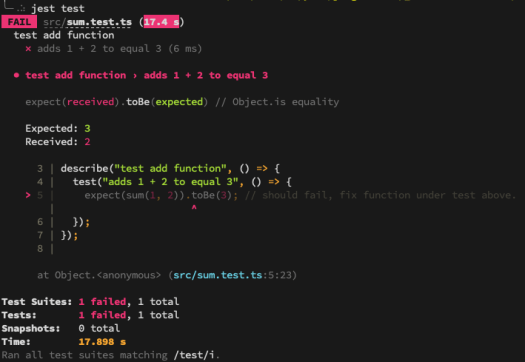
When running yarn test, you may see:
Failing Test Example:

Passing Test Example
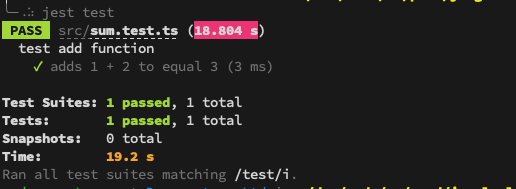
Now, fix any failing tests, and re-run the commands until all tests pass successfully.
Why This Setup is Worth It
This one-time Jest configuration significantly speeds up your TypeScript testing workflow. With proper coverage thresholds, easy-to-run scripts, and a reliable test runner like Jest, you’ll save time while improving your project’s overall quality.
If you would like additional guidance, please take a look at the official Jest configuration guide.
Furthermore, you can configure your IDE to generate boilerplate code snippets using this guide: React Code Snippet Generators with IntelliJ Idea