Tag: automation

  • How to Configure Jest for TypeScript in React or NodeJS Projects

    How to Configure Jest for TypeScript in React or NodeJS Projects

    Setting up Jest for TypeScript testing in React and NodeJS can streamline your development workflow and ensure high-quality code. This guide provides an opinionated, step-by-step process for configuring Jest with TypeScript support, whether you’re working on new or existing projects.

    1. Install Jest and Its Friends (Dependencies)

    Start by installing the necessary Jest packages along with TypeScript support:

    # Using Yarn
    yarn add --dev jest ts-jest @types/jest
    
    # Or using npm
    npm install --save-dev jest ts-jest @types/jest
    • ts-jest: A TypeScript preprocessor that lets Jest handle .ts and .tsx (TypeScript files).
    • @types/jest: Provides type definitions for Jest in TypeScript.

    2. Configure Jest with the Preprocessor

    Generate a basic Jest configuration using ts-jest:

    npx ts-jest config:init

    This command generates a jest.config.js file with the following contents:

    module.exports = {
      preset: 'ts-jest',
      testEnvironment: 'node',
    };

    3. Customize Your Jest Configuration (Optional)

    For advanced setups, you can extend your configuration to include code coverage and improved testing workflows:

    module.exports = {
      roots: ['<rootDir>/src'],
      preset: 'ts-jest',
      testEnvironment: 'node',
      coverageDirectory: 'coverage',
      verbose: true,
      collectCoverage: true,
      coverageThreshold: {
        global: {
          branches: 90,
          functions: 95,
          lines: 95,
          statements: 90,
        },
      },
      collectCoverageFrom: ['**/*.{ts,tsx}'],
      coveragePathIgnorePatterns: ['/node_modules/'],
      coverageReporters: ['json', 'lcov', 'text', 'clover'],
    }; 

    This configuration adds:

    • Code coverage thresholds to ensure high-quality tests.
    • A custom coverage directory.
    • Inclusion of TypeScript, TSX, and JSX files.

    For more advanced configurations, check the official Jest documentation.

    4. Add Jest Test Scripts to package.json

    Add custom scripts for testing workflows in your package.json file:

    {
      "scripts": {
        "test": "jest --coverage",
        "test:watch": "jest --watchAll",
        "test:nocoverage": "jest --watchAll --no-coverage"
      }
    }

    These scripts provide:

    • test: Runs all tests with coverage reports.
    • test:watch: Watches for changes and re-runs tests automatically.
    • test:nocoverage: Faster test runs without generating coverage reports.

    Congratulations if you got this far. This is a one-off set-up; you would rip the benefits in days to come. Follow on to test your Jest configuration for testing your Typescript React or NodeJs project.

    5. Verify the Setup with a Simple Test

    Create a simple function and its corresponding test file to confirm everything is configured correctly.

    Function (sum.ts):

    const sum = (a: number, b: number): number => a + b;
    export default sum;

    Test (sum.test.ts):

    import sum from './sum';
    
    describe('Addition function', () => {
      test('adds 1 + 2 to equal 3', () => {
        expect(sum(1, 2)).toBe(3);
      });
    });

    Run the test:

    yarn test

    6. Advanced Testing Workflow with Coverage Reports

    After running your tests, generate coverage reports for better visibility into untested areas of your codebase.

    Commands

    yarn test               # Runs tests with coverage
    yarn test:watch         # Continuously watches and runs tests
    yarn test:watch:nocoverage  # Faster feedback without coverage
    yarn global add serve   # Install `serve` to view reports
    yarn view:coverage      # Open the coverage reports as a static site 

    Example Test Outputs

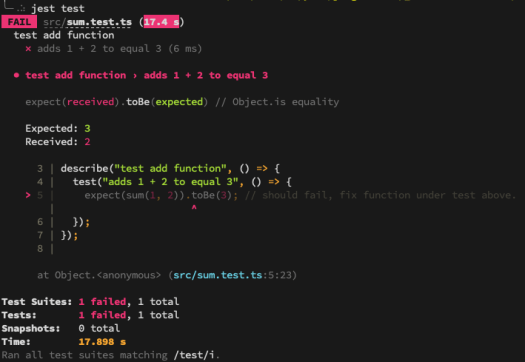
    When running yarn test, you may see:

    Failing Test Example:

    yarn test Example console output with failing test.

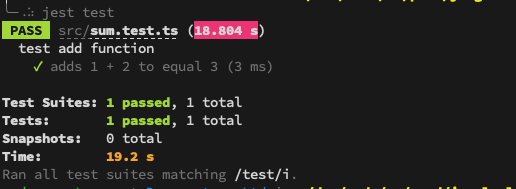
    Passing Test Example

    yarn test Example console output with passing test.

    Now, fix any failing tests, and re-run the commands until all tests pass successfully.

    Why This Setup is Worth It

    This one-time Jest configuration significantly speeds up your TypeScript testing workflow. With proper coverage thresholds, easy-to-run scripts, and a reliable test runner like Jest, you’ll save time while improving your project’s overall quality.

    If you would like additional guidance, please take a look at the official Jest configuration guide.

    Furthermore, you can configure your IDE to generate boilerplate code snippets using this guide: React Code Snippet Generators with IntelliJ Idea
  • Boosting React Development with IntelliJ IDEA Code Snippets

    Boosting React Development with IntelliJ IDEA Code Snippets

    If you’re a fan of automation (and who isn’t?), IntelliJ IDEA’s code snippets are a game-changer for React development. As a Java developer diving into React, I’ve found these snippets invaluable for reducing typos, boilerplate, and the dreaded RSI (Repetitive Strain Injury). This guide walks you through generating React components using IntelliJ IDEA’s live templates, saving you time and effort.

    How to Generate Snippets in IntelliJ IDEA

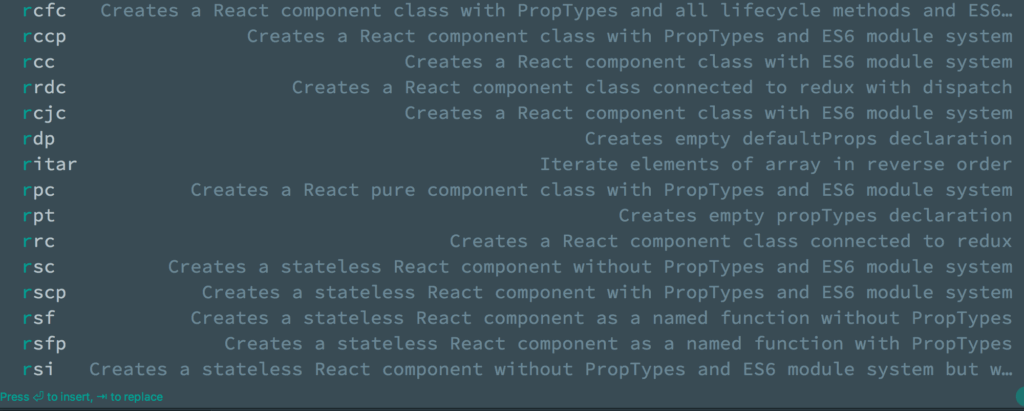
    Before we go any further here is how to generate code snippet in IntelliJ Idea

    •  Simply type abbreviation name of the required snippet in the editor in the target file and press 
    • You can further narow the list suggestions by IntelliJ Idea by typing more characters of your abbrevation.

    Example: shortcuts to create snippets on Intellij Idea on a Mac:

    React Code Snippets Generator IntelliJ Idea
    1. Type ​`​rccp` in your editor
    2. Then press  to generate.

    Note:

    • Component name would be taken from the file name, example “ManageCoursePage.js”
    • For those on Visual Studio Code IDE the Code generation for React can be achieved with the Typescript React Code Snippet Extention

    React Code Snippet Examples

    1. React Component Class with PropTypes

    Abbreviation: rcp
    Steps:

    1. Type rcp in the editor.
    2. Press Tab to generate the snippet.

    Generated Snippet:

    import React, { Component } from 'react';
    import PropTypes from 'prop-types';
    
    class ManageCoursePage extends Component {
      render() {
        return <div>{/* Your code here */}</div>;
      }
    }
    
    ManageCoursePage.propTypes = {};
    export default ManageCoursePage; 

    2. React Component Class with ES6 Module System

    Abbreviation: rcc
    Steps:

    1. Type rcc in the editor.
    2. Press Tab to generate the snippet.

    Generated Snippet:

     import React, { Component } from 'react';
    
    class ManageCoursePage extends Component {
      render() {
        return <div>{/* Your code here */}</div>;
      }
    }
    
    export default ManageCoursePage;

    3. React Component Class Connected to Redux with Dispatch

    Abbreviation: rdc
    Steps:

    1. Type rdc in the editor.
    2. Press Tab to generate the snippet.

    Generated Snippet:

    import React, { Component } from 'react';
    import { connect } from 'react-redux';
    
    function mapStateToProps(state) {
      return {};
    }
    
    function mapDispatchToProps(dispatch) {
      return {};
    }
    
    class ManageCoursePage extends Component {
      render() {
        return <div>{/* Your code here */}</div>;
      }
    }
    
    export default connect(mapStateToProps, mapDispatchToProps)(ManageCoursePage); 

    4. React Component Class with PropTypes and Lifecycle Methods

    Abbreviation: rcfc
    Steps:

    1. Type rcfc in the editor.
    2. Press Tab to generate the snippet.

    Generated Snippet:

    import React, { Component } from 'react';
    import PropTypes from 'prop-types';
    
    class ManageCoursePage extends Component {
      constructor(props) {
        super(props);
      }
    
      componentWillMount() {}
    
      componentDidMount() {}
    
      componentWillReceiveProps(nextProps) {}
    
      shouldComponentUpdate(nextProps, nextState) {
        return true;
      }
    
      componentWillUpdate(nextProps, nextState) {}
    
      componentDidUpdate(prevProps, prevState) {}
    
      componentWillUnmount() {}
    
      render() {
        return <div>{/* Your code here */}</div>;
      }
    }
    
    ManageCoursePage.propTypes = {};
    export default ManageCoursePage; 

    Customising IntelliJ Snippets

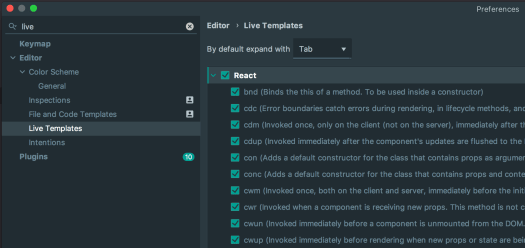
    React Code Snippets Generator IntelliJ Idea Manage
    IntelliJ idea live template view

    To create or modify snippets in IntelliJ IDEA:

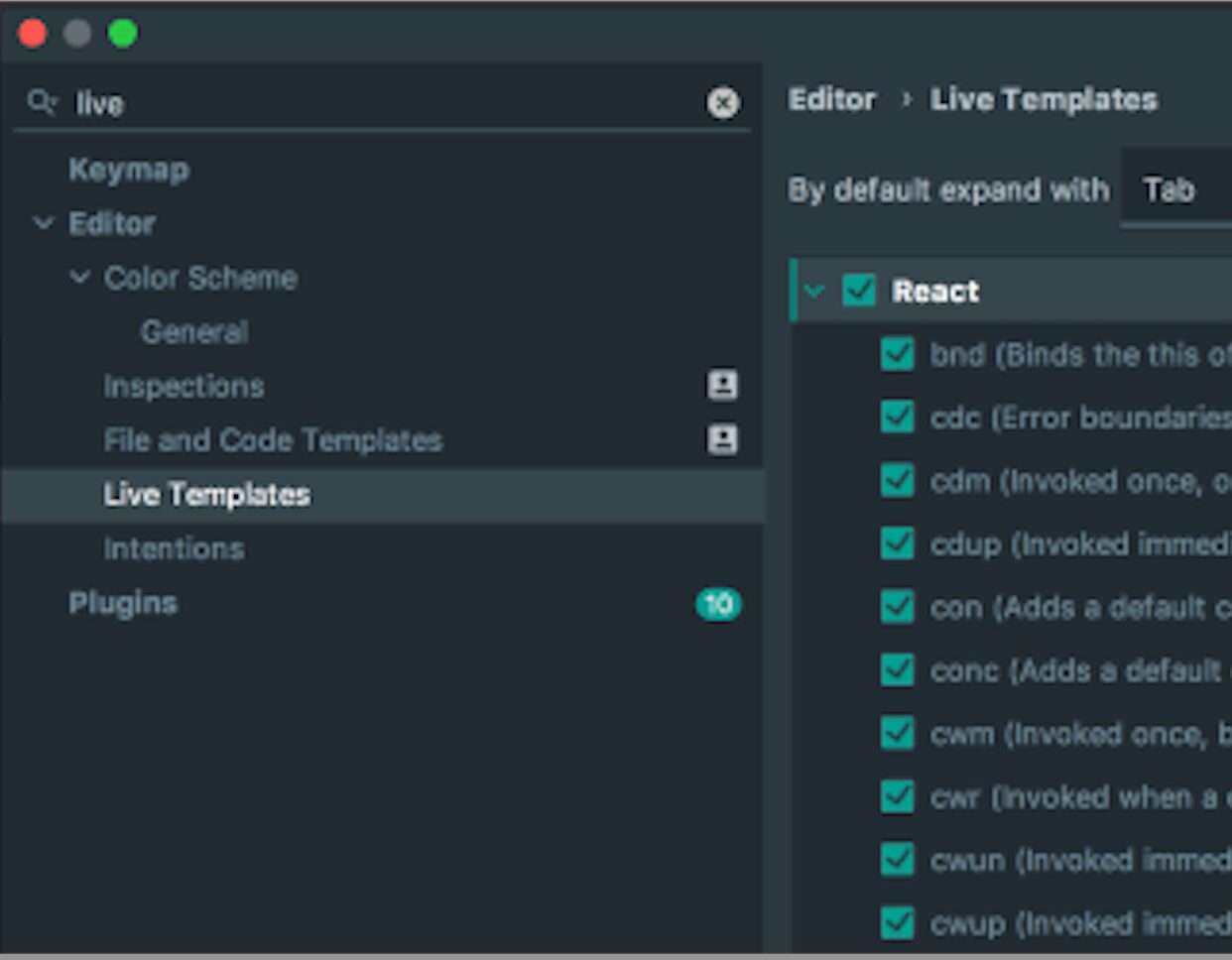
    1. Open Preferences > Editor > Live Templates.
    2. Add new templates or tweak existing ones to match your development style.

    These templates can also be shared across teams to maintain consistency and reduce onboarding time.

    Congratulations! You’ve successfully set up Jest for TypeScript testing in React and NodeJS and integrated IntelliJ IDEA to 10x your workflow. Now! No excuses not to follow a test-driven approach (TDD) and automated testing, which will eventually lead to faster development and more confidence in shipping more frequently

    Conclusion

    IntelliJ IDEA snippets are a fantastic way to save time and reduce errors when working with React. Whether you’re generating PropTypes, lifecycle methods, or Redux-connected components, these templates make development faster and less repetitive. Explore IntelliJ’s live template feature to customise your workflow and share these snippets with your team for maximum efficiency.

    For more automation tips, check out IntelliJ IDEA’s documentation on live templates.

    For more resources

  • Cleaning Elasticsearch Data Before Indexing

    Cleaning Elasticsearch Data Before Indexing

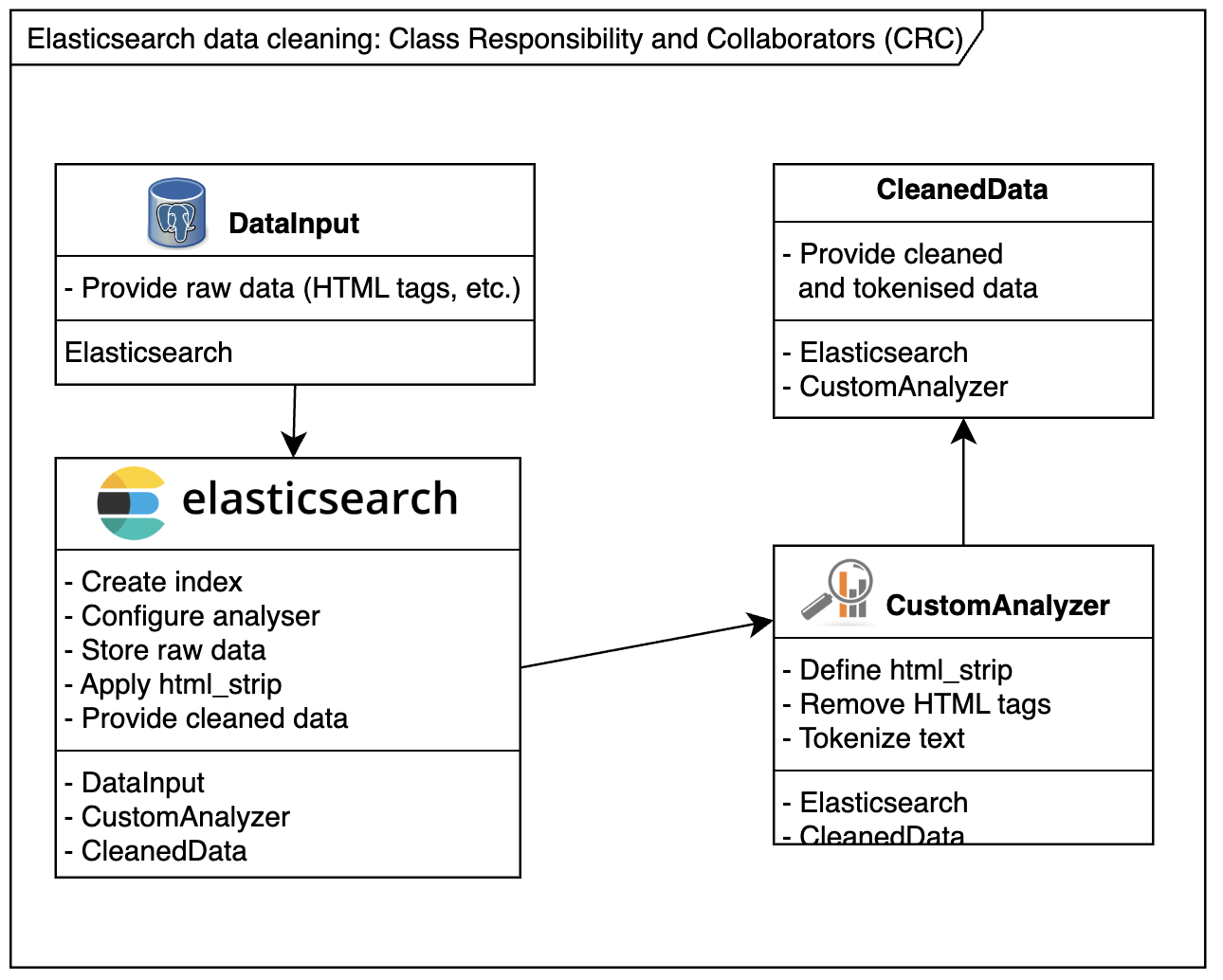
    When dealing with Elasticsearch, sometimes you can’t control the format of incoming data. For instance, HTML tags may slip into your Elasticsearch index, creating unintended or unpredictable search results.

    Example Scenario:
    Consider the following HTML snippet indexed into Elasticsearch:

    <a href="http://somedomain.com">website</a>

    A search for somedomain might match the above link 🫣, but users rarely expect that. To avoid such issues, use a custom analyser to clean the data before indexing. This guide shows you how to clean and debug Elasticsearch data effectively.

    Step 1: Create a New Index with HTML Strip Mapping

    Create a new index with a custom analyzer that uses the html_strip character filter to clean your data.

    PUT Request:

    PUT /html_poc_v3
    {
      "settings": {
        "analysis": {
          "analyzer": {
            "my_html_analyzer": {
              "type": "custom",
              "tokenizer": "standard",
              "char_filter": ["html_strip"]
            }
          }
        }
      },
      "mappings": {
        "html_poc_type": {
          "properties": {
            "body": {
              "type": "string",
              "analyzer": "my_html_analyzer"
            },
            "description": {
              "type": "string",
              "analyzer": "standard"
            },
            "title": {
              "type": "string",
              "analyzer": "my_html_analyzer"
            },
            "urlTitle": {
              "type": "string"
            }
          }
        }
      }
    }

    Step 2: Post Sample Data

    Add some sample data to the newly created index to test the analyzer.

    POST Request:

    POST /html_poc_v3/html_poc_type/02
    {
      "description": "Description <p>Some déjà vu <a href=\"http://somedomain.com\">website</a>",
      "title": "Title <p>Some déjà vu <a href=\"http://somedomain.com\">website</a>",
      "body": "Body <p>Some déjà vu <a href=\"http://somedomain.com\">website</a>"
    } 

    Step 3: Retrieve Indexed Data

    To inspect the cleaned data, use the _search API with custom script fields to bypass the _source field and retrieve the actual indexed tokens.

    GET Request:

    GET /html_poc_v3/html_poc_type/_search?pretty=true
    {
      "query": {
        "match_all": {}
      },
      "script_fields": {
        "title": {
          "script": "doc[field].values",
          "params": {
            "field": "title"
          }
        },
        "description": {
          "script": "doc[field].values",
          "params": {
            "field": "description"
          }
        },
        "body": {
          "script": "doc[field].values",
          "params": {
            "field": "body"
          }
        }
      }
    }

    Example Response

    Here’s an example response showing the cleaned tokens for title, description, and body fields:

    {
      "took": 2,
      "timed_out": false,
      "_shards": {
        "total": 5,
        "successful": 5,
        "failed": 0
      },
      "hits": {
        "total": 1,
        "max_score": 1,
        "hits": [
          {
            "_index": "html_poc_v3",
            "_type": "html_poc_type",
            "_id": "02",
            "_score": 1,
            "fields": {
              "title": [
                "Some",
                "Title",
                "déjà",
                "vu",
                "website"
              ],
              "body": [
                "Body",
                "Some",
                "déjà",
                "vu",
                "website"
              ],
              "description": [
                "a",
                "agrave",
                "d",
                "description",
                "eacute",
                "href",
                "http",
                "j",
                "p",
                "some",
                "somedomain.com",
                "vu",
                "website"
              ]
            }
          }
        ]
      }
    }

    Further Cleaning Elasticsearch Data References

    For additional resources, explore the following links:


    Conclusion

    Cleaning Elasticsearch data using custom analyzers and filters like html_strip ensures accurate and predictable indexing. By following the steps in this guide, you can avoid unwanted behavior and maintain clean, searchable data. Use the provided resources to further enhance your Elasticsearch workflow.

  • Git Alias Configuration: Work Smarter, Not Harder

    Git Alias Configuration: Work Smarter, Not Harder

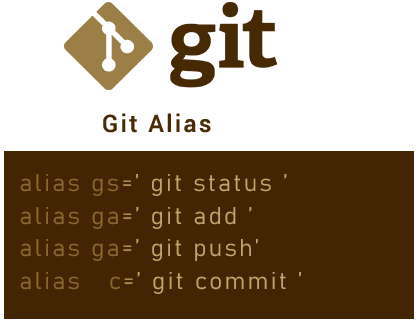
    Git is an indispensable tool for developers, but typing repetitive commands can slow you down. With Git aliases, you can create short and intuitive commands to streamline your workflow.

    Here’s how to configure your Git aliases for maximum efficiency.


    Step 1: Edit Your .gitconfig File

    Your .gitconfig file is typically located in your $HOME directory. Open it using your favorite editor:

    vim ~/.gitconfig

    Step 2: Add Basic Git Configurations

    Here’s an example of what your .gitconfig might look like:

    [core]
        excludesfile = /Users/moses.mansaray/.gitignore_global
        autocrlf = input
    
    [user]
        name = moses.mansaray
        email = moses.mansaray@domain.com
    
    [push]
        default = simple

    Step 3: Add Useful Git Aliases

    Below are some handy Git aliases to boost your productivity:

    [alias]
        # Shortcuts for common commands
        co = checkout
        cob = checkout -b
        cod = checkout develop
        ci = commit
        st = status
    
        # Save all changes with a single command
        save = "!git add -A && git commit -m"
    
        # Reset commands
        rhhard-1 = reset --hard HEAD~1
        rhhard-o = reset head --hard
    
        # View logs in various formats
        hist = log --pretty=format:\"%h %ad | %s%d [%an]\" --graph --date=short
        llf = log --pretty=format:\"%C(yellow)%h%C(red)%d%C(reset)%s%C(blue) [%cn]\" --decorate --numstat
        lld = log --pretty=format:\"%C(yellow)%h %ad%C(red)%d%C(reset)%s%C(blue) [%cn]\" --decorate --date=short
    
        # View file details
        type = cat-file -t
        dump = cat-file -p
    
        # Amend commits easily
        amend = commit -a --amend

    Alias Highlights

    1. Branch Management:
      • co: Checkout an existing branch.
      • cob: Create and switch to a new branch.
      • cod: Switch to the develop branch.
    2. Commit Management:
      • ci: Shortcut for git commit.
      • save: Adds all changes and commits with a single command.
    3. Reset Commands:
      • rhhard-1: Resets to the previous commit (HEAD~1).
      • rhhard-o: Resets the current head completely.
    4. Log Views:
      • hist: Visualize commit history in a graph with formatted output.
      • llf and lld: View logs with decorations and detailed information.
    5. File Details:
      • type and dump: Inspect Git objects in detail.
    6. Quick Fixes:
      • amend: Quickly modify the most recent commit.

    Step 4: Test Your Aliases

    After saving your .gitconfig file, test your new aliases in the terminal:

    git st    # Check status
    git cob feature/new-feature  # Create and switch to a new branch
    git hist  # View the commit history

    Conclusion

    With your aliases set, you now have a simple yet powerful way to save time and reduce errors in your Git workflow. Enjoy turning repetitive tasks into one-liners.

    Do you have a favourite Git alias that isn’t on this list? Share it in the comments below!

  • Lean Maven Release: The Maven Release Plugin on Steroids

    Lean Maven Release: The Maven Release Plugin on Steroids

    If you’ve ever been frustrated by the inefficiencies of the Maven Release Plugin—multiple builds, unnecessary commits, and endless waiting—you’re not alone. Enter the Lean Maven Release, a streamlined alternative to automate and optimize your Maven release process.

    This method eliminates repetitive steps, reduces build times, and minimizes interactions with SCM (Source Control Management). Let’s break it down.


    Why Choose Lean Maven Release?

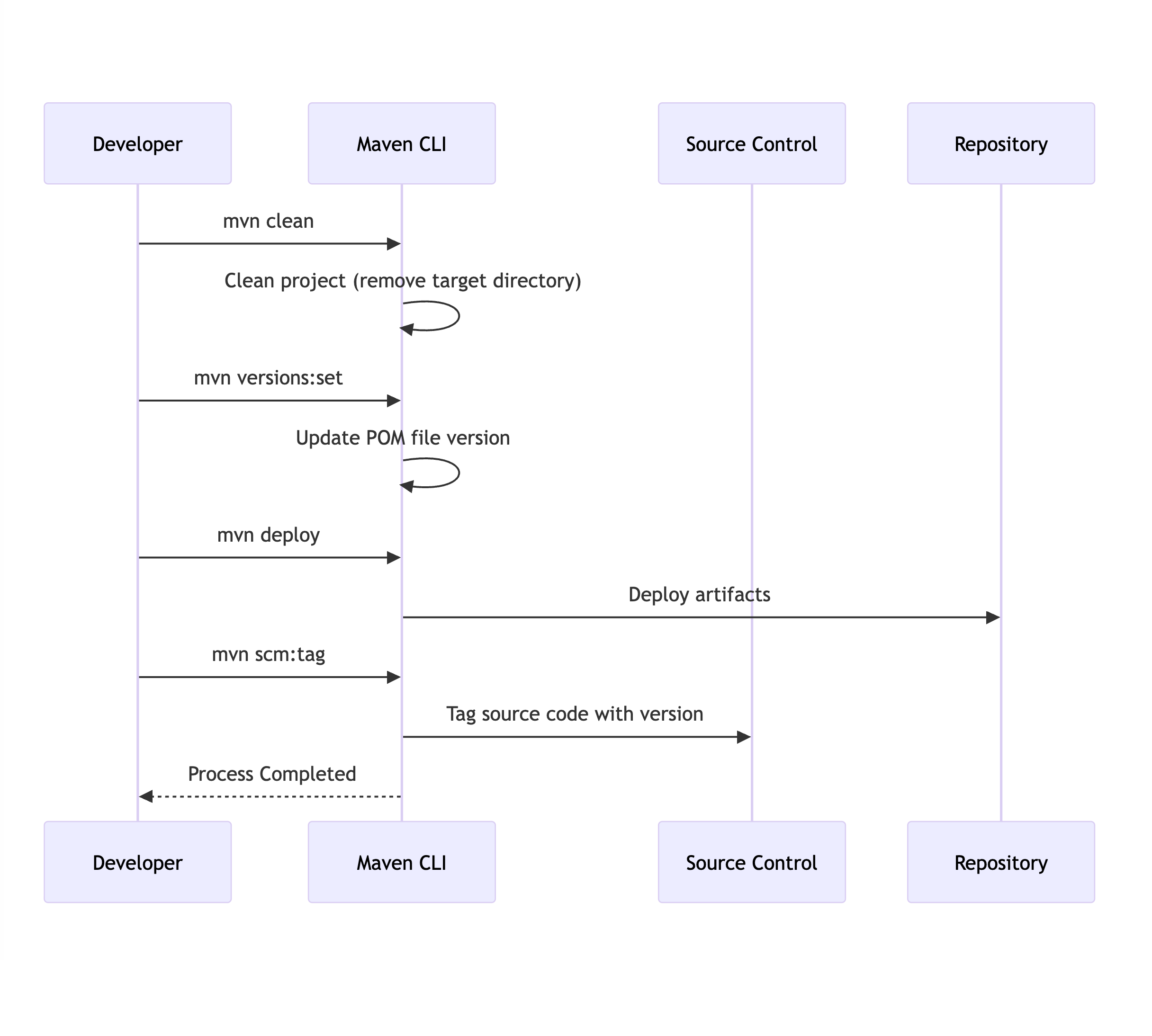
    The Lean Maven Release strategy replaces the repetitive steps of the Maven Release Plugin with a more efficient, scriptable process. Instead of multiple check-ins to SCM and redundant builds, you can reduce the process to just four commands:

    mvn clean
    mvn versions:set
    mvn deploy
    mvn scm:tag 

    This approach can be set up in both Jenkins and TeamCity, saving hours for teams practicing Continuous Delivery or working in environments with frequent build requirements.

    Benefits of Lean Maven Release

    How much of an improvement can you expect? Let’s compare the two approaches:

    StepLean Maven ReleaseMaven Release Plugin
    Clean/Compile/Test Cycle13
    POM Transformations02
    SCM Commits02
    SCM Revisions1 (binary tag)3

    The difference is clear: Lean Maven Release significantly reduces overhead and complexity.


    Getting Started

    Here’s how to implement the Lean Maven Release process in your project:


    1. Add Required Maven Properties

    Ensure the necessary Maven plugin versions are defined in your pom.xml:

    <properties>
        <maven.compiler.plugin.version>3.1</maven.compiler.plugin.version>
        <maven.release.plugin.version>2.5</maven.release.plugin.version>
        <maven.source.plugin.version>2.2.1</maven.source.plugin.version>
        <maven.javadoc.plugin.version>2.9.1</maven.javadoc.plugin.version>
        <maven.gpg.plugin.version>1.5</maven.gpg.plugin.version>
    </properties> 

    2. Configure Deployment Paths

    Set up local or remote deployment paths in the <distributionManagement> section of your pom.xml:

    Local Deployment Example:

    <distributionManagement>
        <repository>
            <id>internal.repo</id>
            <name>Internal Repo</name>
            <url>file:///${user.home}/.m2/repository/internal.local</url>
        </repository>
    </distributionManagement> 
    <distributionManagement>
        <repository>
            <uniqueVersion>false</uniqueVersion>
            <id>corp1</id>
            <name>Corporate Repository</name>
            <url>scp://repo/maven2</url>
            <layout>default</layout>
        </repository>
    </distributionManagement> 

    3. Add Maven Plugins

    Add the necessary Maven plugins to your pom.xml:

    <build>
        <pluginManagement>
            <plugins>
                <plugin>
                    <groupId>org.apache.maven.plugins</groupId>
                    <artifactId>maven-compiler-plugin</artifactId>
                    <version>${maven.compiler.plugin.version}</version>
                </plugin>
                <plugin>
                    <groupId>org.apache.maven.plugins</groupId>
                    <artifactId>maven-release-plugin</artifactId>
                    <version>${maven.release.plugin.version}</version>
                    <configuration>
                        <useReleaseProfile>false</useReleaseProfile>
                        <releaseProfiles>release</releaseProfiles>
                        <goals>deploy</goals>
                    </configuration>
                </plugin>
                <plugin>
                    <groupId>org.apache.maven.plugins</groupId>
                    <artifactId>maven-source-plugin</artifactId>
                    <version>${maven.source.plugin.version}</version>
                </plugin>
                <plugin>
                    <groupId>org.apache.maven.plugins</groupId>
                    <artifactId>maven-javadoc-plugin</artifactId>
                    <version>${maven.javadoc.plugin.version}</version>
                </plugin>
                <plugin>
                    <groupId>org.apache.maven.plugins</groupId>
                    <artifactId>maven-gpg-plugin</artifactId>
                    <version>${maven.gpg.plugin.version}</version>
                </plugin>
            </plugins>
        </pluginManagement>
    </build> 

    4. Define the Release Profile

    Include a release profile to configure the Maven deployment process:

    <profiles>
        <profile>
            <id>release</id>
            <properties>
                <activatedProperties>release</activatedProperties>
            </properties>
            <build>
                <plugins>
                    <plugin>
                        <groupId>org.apache.maven.plugins</groupId>
                        <artifactId>maven-source-plugin</artifactId>
                        <executions>
                            <execution>
                                <id>attach-sources</id>
                                <goals>
                                    <goal>jar</goal>
                                </goals>
                            </execution>
                        </executions>
                    </plugin>
                    <plugin>
                        <groupId>org.apache.maven.plugins</groupId>
                        <artifactId>maven-javadoc-plugin</artifactId>
                        <executions>
                            <execution>
                                <id>attach-javadocs</id>
                                <goals>
                                    <goal>jar</goal>
                                </goals>
                            </execution>
                        </executions>
                    </plugin>
                </plugins>
            </build>
        </profile>
    </profiles> 

    5. Optional: Configure Assembly Plugin

    If required, add an assembly descriptor for packaging:

    <assembly>
        <id>plugin</id>
        <formats>
            <format>zip</format>
        </formats>
        <includeBaseDirectory>false</includeBaseDirectory>
        <dependencySets>
            <dependencySet>
                <outputDirectory>/</outputDirectory>
                <useProjectArtifact>true</useProjectArtifact>
                <useTransitiveFiltering>true</useTransitiveFiltering>
            </dependencySet>
        </dependencySets>
    </assembly> 

    6. Skip GPG Signing (Optional)

    If you don’t want to sign packages, you can skip the GPG plugin during deployment:

    mvn deploy -Prelease -Dgpg.skip=true 

    Conclusion

    This Lean Maven Release approach allows you to:

    • Eliminate unnecessary SCM interactions.
    • Reduce build times significantly.
    • Simplify deployment workflows.

    This method is ideal for teams practicing Continuous Delivery(CD) or dealing with frequent release cycles. For more details, check out Axel Fontaine’s blog post, which inspired this guide.

    Let me know what you think!

  • IntelliJ Tweaks: Hot Deploy/Swap to Servlet Server

    IntelliJ Tweaks: Hot Deploy/Swap to Servlet Server

    IntelliJ Tweaks: Hot Deploy/Swap to Servlet Server

    Hot deployment in IntelliJ IDEA allows developers to make changes to their code and immediately see the results on the Servlet Server without restarting the application. This tweak is a lifesaver for anyone working in a fast-paced development environment.

    Follow these simple steps to enable Hot Deploy and Hot Swap in IntelliJ IDEA.

    Steps to Enable Hot Deploy

    1. Update Debugger Settings

    Go to:

    File → Settings → Debugger → HotSwap
    • Enable class reload on the background: Set to true.
    • Enable class reload after compilations: Set to always.

    2. Configure Run/Debug Settings

    Update your Run/Debug Configuration:

    • In the “On frame deactivation” dropdown, select “Update resources.”

    Bonus: More Configuration Tips

    For advanced hot deployment scenarios, refer to this detailed guide on Hot Deployment with IntelliJ IDEA.

    Conclusion

    You’ll spend less time restarting your server and more time focusing on building your application after these IntelliJ tweaks. Hot deployment can significantly improve productivity, especially in projects where frequent updates are necessary.

    Try it out and let the rapid feedback loop supercharge your development workflow!