
Category: Developer Productivity and Hacks

Efficiency tips, tools, and tricks that take the pain out of coding. From IDE extensions to debugging wizardry, these posts will help you ship better code faster—and have fun while doing it.

  • The Case of Missing Elasticsearch Logs: A Midnight Mystery

    The Case of Missing Elasticsearch Logs: A Midnight Mystery

    While debugging my Elasticsearch instance, I noticed a curious issue: logs would vanish consistently at midnight. No logs appeared between 23:40:00 and 00:00:05, leaving an unexplained gap. This guide walks through the debugging process, root cause identification, and a simple fix.

    Initial Investigation: Where Did the Logs Go?

    At first glance, the following possibilities seemed likely:

    1. Log Rotation: Elasticsearch rotates its logs at midnight. Could this process be causing the missing lines?
    2. Marvel Indices: Marvel creates daily indices at midnight. Could this interfere with log generation?

    Neither explained the issue upon closer inspection, so I dug deeper.

    The Real Culprit: Log4j and DailyRollingFileAppender

    The issue turned out to be related to Log4j. Elasticsearch uses Log4j for logging, but instead of a traditional log4j.properties file, it employs a translated YAML configuration. After reviewing the logging configuration, I found the culprit: DailyRollingFileAppender.

    What’s Wrong with DailyRollingFileAppender?

    The DailyRollingFileAppender class extends Log4j’s FileAppender but introduces a major flaw—it synchronizes file rolling at user-defined intervals, which can cause:

    • Data Loss: Logs might not be written during the rolling process.
    • Synchronization Issues: Overlap between log files leads to missing data.

    This behavior is well-documented in the Apache DailyRollingFileAppender documentation.

    Root Cause: Why Were Logs Missing?

    The missing logs were a direct result of using DailyRollingFileAppender, which failed to properly handle log rotation at midnight. This caused gaps in logging during the critical period when the file was being rolled over.

    The Fix: Switch to RollingFileAppender

    To resolve this, I replaced DailyRollingFileAppender with RollingFileAppender, which rolls logs based on file size rather than a specific time. This eliminates the synchronization issues associated with the daily rolling behavior.

    Updated YAML Configuration

    Here’s how I updated the configuration:

    file:
      type: rollingfile
      file: ${path.logs}/${cluster.name}.log
      maxFileSize: 100MB
      maxBackupIndex: 10
      layout:
        type: pattern
        conversionPattern: "[%d{ISO8601}][%-5p][%-25c] %m%n" 

    Key Changes:

    • Type: Changed from dailyRollingFile to rollingFile.
    • File Size Limit: Set maxFileSize to 100MB.
    • Backup: Retain up to 10 backup log files.
    • Removed Date Pattern: Eliminated the problematic datePattern field used by DailyRollingFileAppender.

    Happy Ending: Logs Restored

    After implementing the fix, Elasticsearch logs stopped disappearing. Interestingly, further investigation revealed that the midnight log gap was also related to Marvel indices transitioning into a new day. This caused brief latency as new indices were created for shards and replicas.

    Lessons Learned

    1. Understand Your Tools: Familiarity with Log4j’s appenders helped identify the issue quickly.
    2. Avoid Deprecated Features: DailyRollingFileAppender is prone to issues—switch to RollingFileAppender for modern setups.
    3. Analyze Related Systems: The Marvel index creation provided additional context for the midnight timing.

    Conclusion

    Debugging missing Elasticsearch logs required diving into the logging configuration and understanding how appenders handle file rolling. By switching to RollingFileAppender, I resolved the synchronisation issues and restored the missing logs.

    If you’re experiencing similar issues, check your logging configuration and avoid using DailyRollingFileAppender in favor of RollingFileAppender. This can save hours of debugging in the future.

    For more insights, explore Log4j Appender Documentation.

    Also, to learn how to clean data coming into Elasticsearch see Cleaning Elasticsearch Data Before Indexing.

  • Lean Maven Release: The Maven Release Plugin on Steroids

    Lean Maven Release: The Maven Release Plugin on Steroids

    If you’ve ever been frustrated by the inefficiencies of the Maven Release Plugin—multiple builds, unnecessary commits, and endless waiting—you’re not alone. Enter the Lean Maven Release, a streamlined alternative to automate and optimize your Maven release process.

    This method eliminates repetitive steps, reduces build times, and minimizes interactions with SCM (Source Control Management). Let’s break it down.


    Why Choose Lean Maven Release?

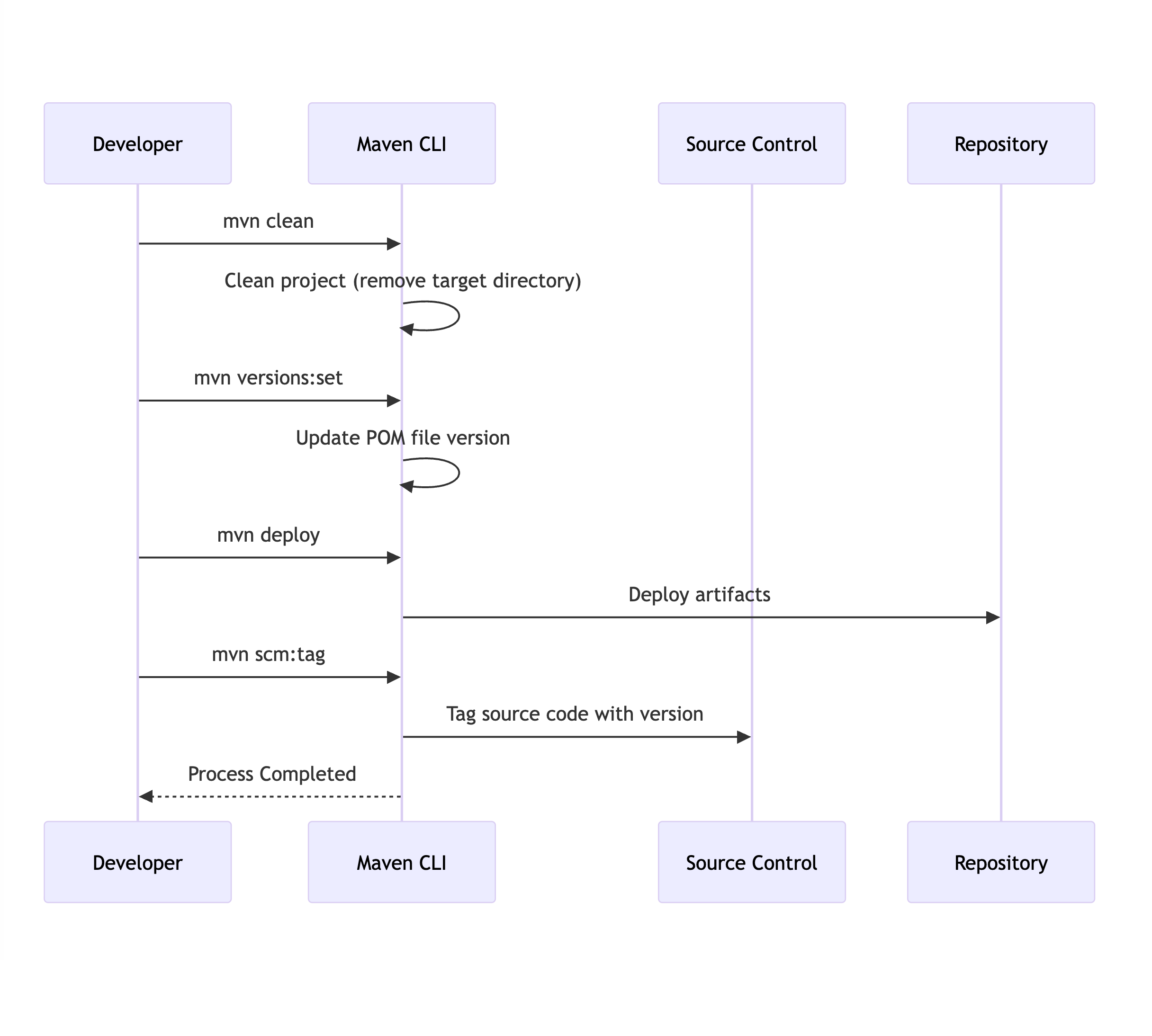
    The Lean Maven Release strategy replaces the repetitive steps of the Maven Release Plugin with a more efficient, scriptable process. Instead of multiple check-ins to SCM and redundant builds, you can reduce the process to just four commands:

    mvn clean
    mvn versions:set
    mvn deploy
    mvn scm:tag 

    This approach can be set up in both Jenkins and TeamCity, saving hours for teams practicing Continuous Delivery or working in environments with frequent build requirements.

    Benefits of Lean Maven Release

    How much of an improvement can you expect? Let’s compare the two approaches:

    StepLean Maven ReleaseMaven Release Plugin
    Clean/Compile/Test Cycle13
    POM Transformations02
    SCM Commits02
    SCM Revisions1 (binary tag)3

    The difference is clear: Lean Maven Release significantly reduces overhead and complexity.


    Getting Started

    Here’s how to implement the Lean Maven Release process in your project:


    1. Add Required Maven Properties

    Ensure the necessary Maven plugin versions are defined in your pom.xml:

    <properties>
        <maven.compiler.plugin.version>3.1</maven.compiler.plugin.version>
        <maven.release.plugin.version>2.5</maven.release.plugin.version>
        <maven.source.plugin.version>2.2.1</maven.source.plugin.version>
        <maven.javadoc.plugin.version>2.9.1</maven.javadoc.plugin.version>
        <maven.gpg.plugin.version>1.5</maven.gpg.plugin.version>
    </properties> 

    2. Configure Deployment Paths

    Set up local or remote deployment paths in the <distributionManagement> section of your pom.xml:

    Local Deployment Example:

    <distributionManagement>
        <repository>
            <id>internal.repo</id>
            <name>Internal Repo</name>
            <url>file:///${user.home}/.m2/repository/internal.local</url>
        </repository>
    </distributionManagement> 
    <distributionManagement>
        <repository>
            <uniqueVersion>false</uniqueVersion>
            <id>corp1</id>
            <name>Corporate Repository</name>
            <url>scp://repo/maven2</url>
            <layout>default</layout>
        </repository>
    </distributionManagement> 

    3. Add Maven Plugins

    Add the necessary Maven plugins to your pom.xml:

    <build>
        <pluginManagement>
            <plugins>
                <plugin>
                    <groupId>org.apache.maven.plugins</groupId>
                    <artifactId>maven-compiler-plugin</artifactId>
                    <version>${maven.compiler.plugin.version}</version>
                </plugin>
                <plugin>
                    <groupId>org.apache.maven.plugins</groupId>
                    <artifactId>maven-release-plugin</artifactId>
                    <version>${maven.release.plugin.version}</version>
                    <configuration>
                        <useReleaseProfile>false</useReleaseProfile>
                        <releaseProfiles>release</releaseProfiles>
                        <goals>deploy</goals>
                    </configuration>
                </plugin>
                <plugin>
                    <groupId>org.apache.maven.plugins</groupId>
                    <artifactId>maven-source-plugin</artifactId>
                    <version>${maven.source.plugin.version}</version>
                </plugin>
                <plugin>
                    <groupId>org.apache.maven.plugins</groupId>
                    <artifactId>maven-javadoc-plugin</artifactId>
                    <version>${maven.javadoc.plugin.version}</version>
                </plugin>
                <plugin>
                    <groupId>org.apache.maven.plugins</groupId>
                    <artifactId>maven-gpg-plugin</artifactId>
                    <version>${maven.gpg.plugin.version}</version>
                </plugin>
            </plugins>
        </pluginManagement>
    </build> 

    4. Define the Release Profile

    Include a release profile to configure the Maven deployment process:

    <profiles>
        <profile>
            <id>release</id>
            <properties>
                <activatedProperties>release</activatedProperties>
            </properties>
            <build>
                <plugins>
                    <plugin>
                        <groupId>org.apache.maven.plugins</groupId>
                        <artifactId>maven-source-plugin</artifactId>
                        <executions>
                            <execution>
                                <id>attach-sources</id>
                                <goals>
                                    <goal>jar</goal>
                                </goals>
                            </execution>
                        </executions>
                    </plugin>
                    <plugin>
                        <groupId>org.apache.maven.plugins</groupId>
                        <artifactId>maven-javadoc-plugin</artifactId>
                        <executions>
                            <execution>
                                <id>attach-javadocs</id>
                                <goals>
                                    <goal>jar</goal>
                                </goals>
                            </execution>
                        </executions>
                    </plugin>
                </plugins>
            </build>
        </profile>
    </profiles> 

    5. Optional: Configure Assembly Plugin

    If required, add an assembly descriptor for packaging:

    <assembly>
        <id>plugin</id>
        <formats>
            <format>zip</format>
        </formats>
        <includeBaseDirectory>false</includeBaseDirectory>
        <dependencySets>
            <dependencySet>
                <outputDirectory>/</outputDirectory>
                <useProjectArtifact>true</useProjectArtifact>
                <useTransitiveFiltering>true</useTransitiveFiltering>
            </dependencySet>
        </dependencySets>
    </assembly> 

    6. Skip GPG Signing (Optional)

    If you don’t want to sign packages, you can skip the GPG plugin during deployment:

    mvn deploy -Prelease -Dgpg.skip=true 

    Conclusion

    This Lean Maven Release approach allows you to:

    • Eliminate unnecessary SCM interactions.
    • Reduce build times significantly.
    • Simplify deployment workflows.

    This method is ideal for teams practicing Continuous Delivery(CD) or dealing with frequent release cycles. For more details, check out Axel Fontaine’s blog post, which inspired this guide.

    Let me know what you think!

  • IntelliJ Tweaks: Hot Deploy/Swap to Servlet Server

    IntelliJ Tweaks: Hot Deploy/Swap to Servlet Server

    IntelliJ Tweaks: Hot Deploy/Swap to Servlet Server

    Hot deployment in IntelliJ IDEA allows developers to make changes to their code and immediately see the results on the Servlet Server without restarting the application. This tweak is a lifesaver for anyone working in a fast-paced development environment.

    Follow these simple steps to enable Hot Deploy and Hot Swap in IntelliJ IDEA.

    Steps to Enable Hot Deploy

    1. Update Debugger Settings

    Go to:

    File → Settings → Debugger → HotSwap
    • Enable class reload on the background: Set to true.
    • Enable class reload after compilations: Set to always.

    2. Configure Run/Debug Settings

    Update your Run/Debug Configuration:

    • In the “On frame deactivation” dropdown, select “Update resources.”

    Bonus: More Configuration Tips

    For advanced hot deployment scenarios, refer to this detailed guide on Hot Deployment with IntelliJ IDEA.

    Conclusion

    You’ll spend less time restarting your server and more time focusing on building your application after these IntelliJ tweaks. Hot deployment can significantly improve productivity, especially in projects where frequent updates are necessary.

    Try it out and let the rapid feedback loop supercharge your development workflow!